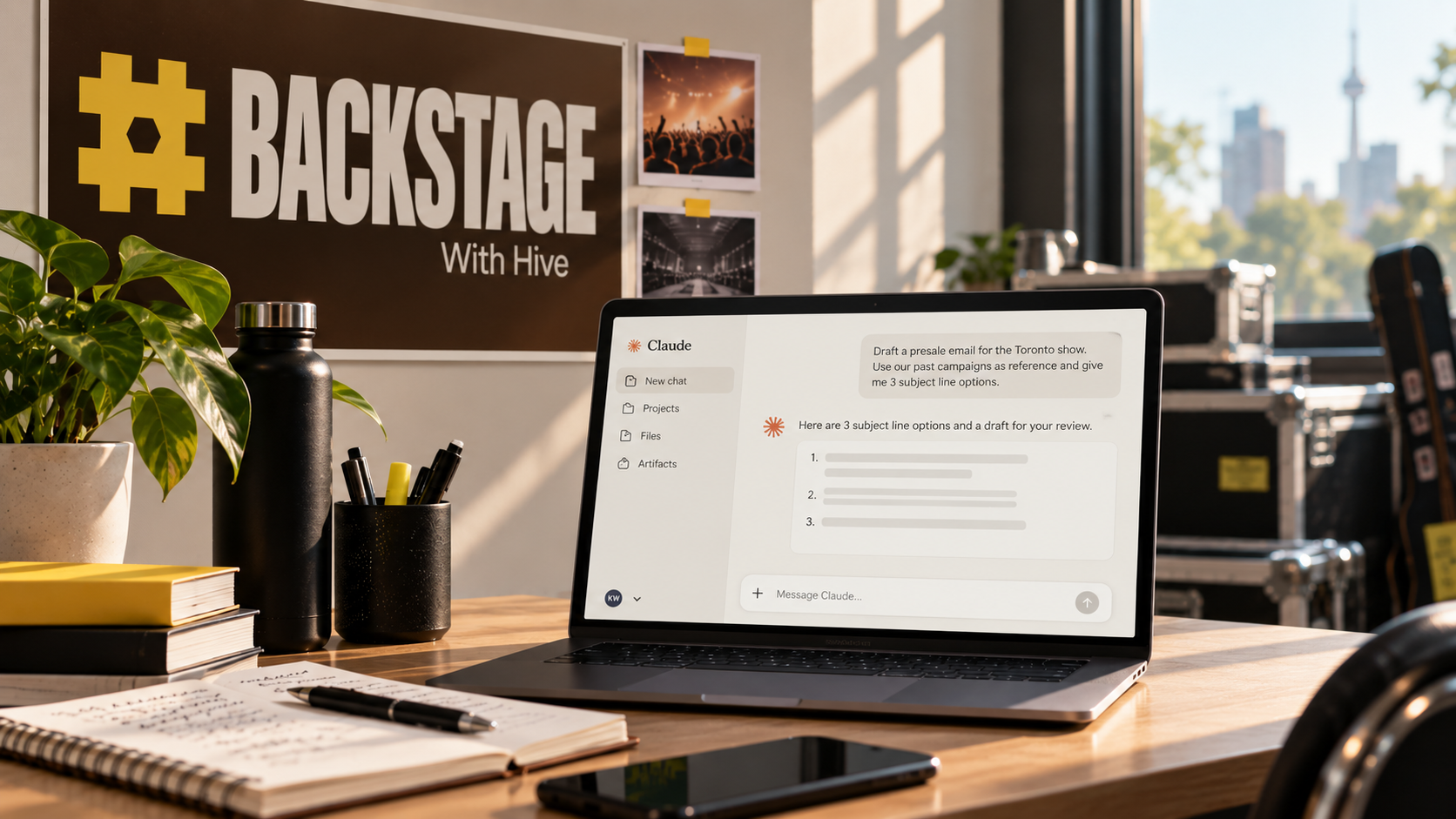

You're an event marketer who's been giving AI a real shot, trying to find the parts of your week it can actually help with. Maybe you've already used Claude Chat for a draft or two, or you're further along with Cowork installed and a folder of context loaded in. Either way, the question that tends to come next is: what should you actually have it do?
Below are seven Claude Cowork prompts built for event marketers, copy-and-paste ready. These prompts assume you've already done the Cowork setup our beginner's guide walks through, and each one runs on demand or can be set as a scheduled task that fires daily, weekly, or before every show.
Pick whichever maps to whatever's hardest about your week, paste it into Cowork, and customize the brackets.
How to use these prompts
Open Cowork in the desktop app, click the Copy button on any of the prompts below, paste it into a new chat, and customize the [BRACKETS] for your specific situation. Claude will ask for permissions the first time it needs access to Gmail, a folder, or any other tool. Each prompt works out of the box, and any of them can be set up as a scheduled task that runs daily, weekly, or on demand.
1. Single Show Announcement Packet
A show goes on sale next week and you need pre-sale email copy, on-sale email copy, a presale-day SMS, and a few social captions all in the same brand voice. This prompt reads your show details and outputs the whole packet in one pass.
What it does:
- Reads your brand voice doc and the show details
- Generates pre-sale email, on-sale email, presale-day SMS, and three social captions
- All written to match your brand voice
- Saves the packet as separate files ready for ESP review
The prompt:
Read my brand voice doc at [path, e.g. ~/brand/voice.md].

SHOW DETAILS:
- Artist: [name]
- Venue: [venue]
- Date: [date]
- Doors / set time: [time]
- On-sale: [date and time]
- Presale code: [code, if applicable]
- Ticket link: [URL]

GENERATE THE FOLLOWING:

1. Pre-sale teaser email (under 120 words)
   - Subject line under 50 characters
   - Preview text under 90 characters
   - Lead with the artist and date in one breath
   - One sentence on why this show matters
   - Logistics block + CTA

2. On-sale email (under 150 words)
   - Subject line announcing tickets are live
   - Same logistics block + CTA
   - One specific detail that wasn't in the pre-sale

3. Presale-day SMS (under 160 characters)
   - Artist + presale start time + code + short link

4. Three social captions (under 80 characters each)
   - Announce
   - Mid-cycle reminder
   - Last-call

OUTPUT: Save all four as separate files in a folder named
[YYYY-MM-DD]-[artist]-announce-packet/ in my Cowork directory.
Pro tip: Save your voice doc as a Skill in Cowork's skills folder, and the prompt pulls it in automatically every time without you needing to point at the path.
2. Post-Show Recap Content Pack
The show ended last night, you've got crowd notes and a few setlist moments you typed up before bed. This prompt turns those inputs into a recap email opener, social caption pack, and a thank-you to the artist team.
What it does:
- Reads a crowd notes file from your local folder
- Drafts a recap email opener (under 250 words), four social captions, and a 100-word thank-you to the artist
- Saves all outputs to a single show packet folder
The prompt:
Read the crowd notes file at [path, e.g. ~/Shows/2026-05-06-notes.txt].

SHOW METADATA:
- Artist: [name]
- Venue: [venue]
- Date: [date]
- Audience: [size + vibe]

GENERATE:

1. Recap email opener (under 250 words)
   - Open with one specific scene from the night
   - Build into the crowd vibe
   - Close with a hook to an upcoming show

2. Four social captions (under 80 characters each)
   - Two reference the crowd
   - One thanks the artist
   - One forward-looking to the next show

3. Thank-you email to the artist's tour manager (under 100 words)
   - Reference one moment that landed
   - One specific compliment about the band's energy
   - Soft close on future routing

OUTPUT: Save all three as separate files in a folder named
[YYYY-MM-DD]-[artist]-recap-packet/ in my Cowork directory.
Pro tip: Drop the crowd notes file the morning after the show with your first coffee. The recap email goes out before noon and stays warm while attendees still remember the night.
3. Subject Line A/B Variants for a Ticket Push
A show isn't moving the way you projected, the next sale email goes out tomorrow, and you want five subject line angles to A/B test rather than guessing at one. This prompt generates five variants across different psychological angles, each under 50 characters.
What it does:
- Takes show details and the angle of your current subject line
- Generates five variant subject lines, each angled differently
- Returns them as a copy-paste ready list with a note on what each is testing
The prompt:
Generate 5 subject line variants for an upcoming ticket reminder email.

SHOW:
- Artist: [name]
- Venue: [venue]
- Date: [date]

CURRENT ANGLE: [whatever your last subject line was]

Test variants across these angles:
1. Urgency (tickets-left framing)
2. Social proof (who's going, sold-out shows nearby)
3. Curiosity (artist news, setlist preview)
4. Value (price drop, package deal, opener news)
5. FOMO (highlight from a previous city or tour)

Each under 50 characters. Plain text, no all-caps.
Output as a numbered list with a one-line note on what each one is testing.
Pro tip: Run it Monday morning, set up the A/B in your ESP by Tuesday, and you'll know which angle is working by end of week.
4. Audience Segmentation Brief for a Dedicated Send
A new show is announced and you want to send a dedicated email to the fans most likely to actually care. This prompt builds the segmentation logic for you, ranked by signal strength, so your CRM operator can build the segment from the brief in under an hour.
What it does:
- Reads show details and the artist's genre or similar acts
- Returns ranked segment criteria covering first-party, behavioral, and demographic data
- Formats it as a hand-off doc for your CRM operator
The prompt:
I'm sending a dedicated email for a show by [artist name], who plays [genre or describe with similar artists].

Suggest segmentation criteria for the affinity send, ranked by signal strength.

Include:
1. First-party criteria (past attendance of this artist or similar acts in our buyer history)
2. Behavioral criteria (past email opens or clicks on similar artists, content engagement)
3. Demographic and market criteria (geo, age band if available)
4. Recency criteria (last engagement window)
5. Exclusions (recent unsubscribes, already-bought, etc.)

Format as a numbered list. Each criterion: one sentence describing the segment plus an estimate of how strong the signal is.
Pro tip: Send the output straight to your CRM operator. The clearer the brief, the faster the segment lands in your sandbox.
5. Brand Voice Consistency Check on Any Draft
Before any draft ships, you want a quick check that it actually sounds like your venue or festival rather than generic event marketing copy. This prompt reads your voice doc and flags anything that drifts.
What it does:
- Reads your brand voice doc (or skill file)
- Reviews a draft and flags any line that breaks the rules
- Shows before/after suggestions for each flag, with a final ship-or-rework verdict
The prompt:
Read my brand voice doc at [path, e.g. ~/brand/voice.md].

Review the draft below against the voice rules. Flag any line that breaks them. For each flag, show before/after with the suggested fix.

[Paste your draft here]

OUTPUT: One flag per issue, formatted as:

Flag [number]: [Rule it broke]
  Before: [the line]
  After: [suggested rewrite]

End with a one-sentence verdict: ship as-is, ship with edits, or rework.
Pro tip: Run this on every email and social caption before it leaves your draft folder. The most common voice slips are generic adjectives (amazing, incredible, unmissable) and corporate phrasing (we are thrilled to announce). Catching them at draft saves the brand from a long slow drift.
6. Weekly Ticket Sale Snapshot (scheduled task)
Sale reports arrive scattered across six emails every Friday afternoon, and by Monday they've been buried under another two hundred. This scheduled task pulls the numbers, ranks the shows by sell-through and momentum, and drops a one-page summary in your inbox before coffee.
What it does:
- Runs automatically every Monday morning
- Scans Gmail for ticketing platform sale reports from the previous week
- Extracts gross, ticket count, sell-through, and refunds per show
- Saves a one-page markdown summary to your reports folder
The prompt:
Every Monday at 8am, scan Gmail for ticket sale reports from the prior 7 days.

GMAIL FILTER:
- Senders: [your ticketing platform domain, e.g. *@yourticketingplatform.com]
- Subject contains: report, sales, weekly, daily, summary
- Date range: prior 7 days

FOR EACH SHOW REPORTED, EXTRACT:
- Show name and date
- Tickets sold this week
- Total tickets sold to date
- Capacity
- Sell-through %
- Gross this week
- Refunds this week (count and $)

BUILD A SUMMARY:
- One row per show, sorted by show date
- Columns: Show | Date | Sold This Week | Total Sold | Sell-through % | Gross
- Top movers: 3 shows with biggest week-over-week jump
- Sell-through alerts: any show < 30% with < 30 days to door

OUTPUT: Save as ticket-snapshot-[YYYY-MM-DD].md in [YOUR REPORTS FOLDER PATH].
Send a Slack DM to me with the markdown file attached.
Pro tip: Add an "if sell-through drops" trigger so the prompt flags any show that lost momentum week over week. That dip is your moment to intervene before the show stalls.
7. Show-Day FAQ / Know Before You Go
Members ask the same handful of questions every show, the kind a pinned post should answer once and never have to answer again: doors, parking, re-entry, and the rest. This prompt drafts a full pinned FAQ alongside contingency comms for everything that might go sideways.
What it does:
- Reads a venue policy file and show details file from your local folder
- Drafts a pinned FAQ post for the show
- Drafts three contingency comms (delay, cancellation with reschedule, cancellation without)
- Saves all four as separate files in a show comms folder
The prompt:
Read the following two files from my local folder:

- Venue policy file: [path, e.g. ~/Venues/[venue]-policies.md]
- Show details file: [path, e.g. ~/Shows/[date]-[artist]-details.md]

GENERATE:

1. Pinned FAQ post (numbered list, each answer under 30 words)
   - Doors and start times
   - Age policy
   - ID requirements
   - Parking and transit
   - Merch hours
   - Re-entry policy
   - Coat check
   - Photo and phone policy
   - Lost and found contact

2. Delay comms (start time pushed 60-90 min)
   - Email under 100 words
   - Social post under 280 characters
   - On-site signage line under 20 words

3. Cancellation comms with reschedule
   - Email with refund opt-out instructions
   - Social post
   - Pinned FAQ update line

4. Cancellation comms without reschedule
   - Full refund email
   - Social post
   - 3 talking points for box office staff

Tone across all: calm, factual, no apology language.

OUTPUT: Save the four drafts as separate files in a folder named
[YYYY-MM-DD]-[artist]-comms-packet/ in my Cowork directory.
Pro tip: Things change quickly. Re-run this prompt close to the show so all your info is current.
How to actually start
Pick the workflow that maps to whatever's hardest about your week and run it once. Iterate on the prompt until the output is something you'd hand off without rewriting it yourself (ideally by talking to Claude about what's not working and letting it rewrite the skill for you). Pick a second one next week. The setup time on each is small, and the hours saved compound, week over week, in ways that only become visible after about a month.
Trade workflow notes with peers running shows: https://backstage.hive.co/community